Showing posts with label How Tos. Show all posts

Monday, April 6, 2009

How to Transfer Files to Your iPhone Using Fugu (Mac)

These are instructions on how to transfer files to your iPhone using Fugu. To follow this tutorial you need to have a jailbroken iPhone with SSH installed. You can find instructions on how to jailbreak your iPhone here.

Step One
First we must obtain the IP Address of the iPhone. To do this press the Settings button on your Springboard.


Step Two
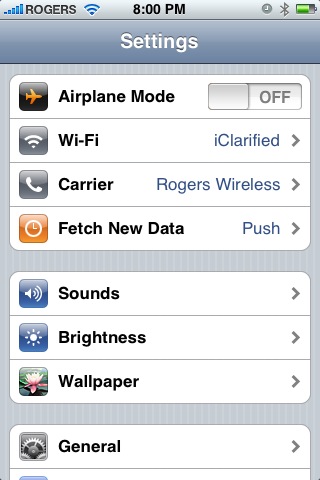
Press to select Wi-Fi from the Settings Menu

Step Three
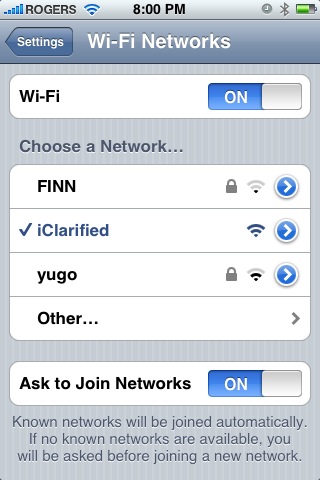
Make sure you are connected to a wireless network then press the circular blue arrow button

Step Four
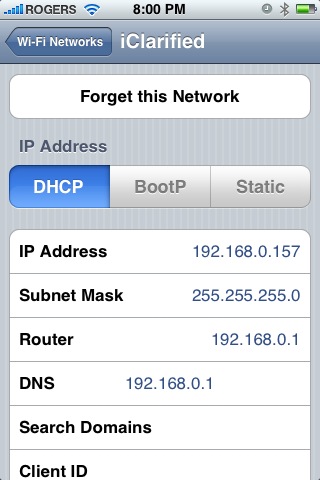
Take note of your IP address from the Wi-Fi details screen

Step Five
Make sure you are on the same wireless network as your iPhone and launch Fugu by clicking its icon in the dock or in your Applications folder. If you do not have Fugu installed you can download it from here


Step Six
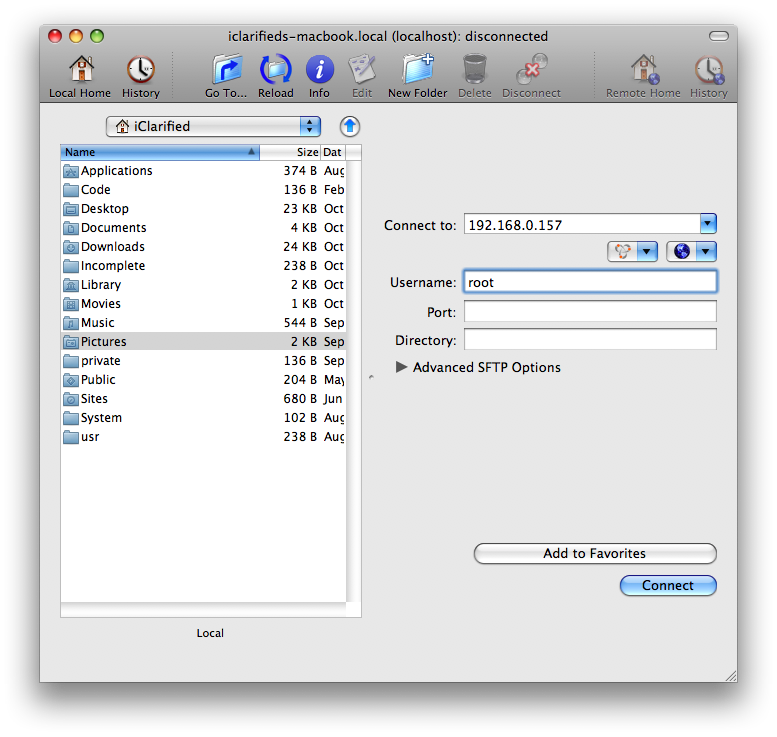
Once Fugu opens enter your iPhone's IP Address into the Connect to: field. Then enter root as your iPhone username and click the Connect button.

Step Seven
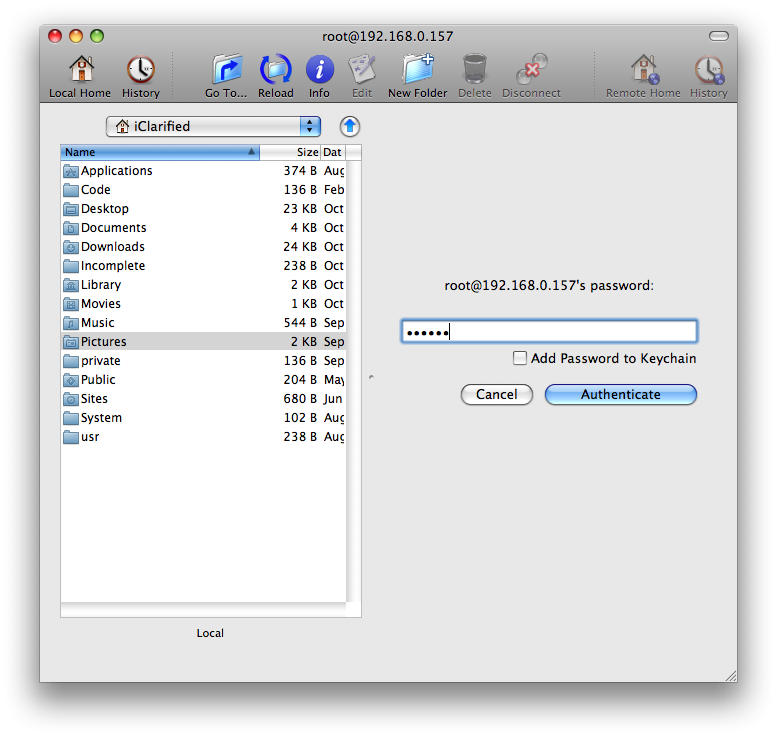
You will be asked to input a password. Enter alpine as the password and click the Authenticate button.

Step Eight
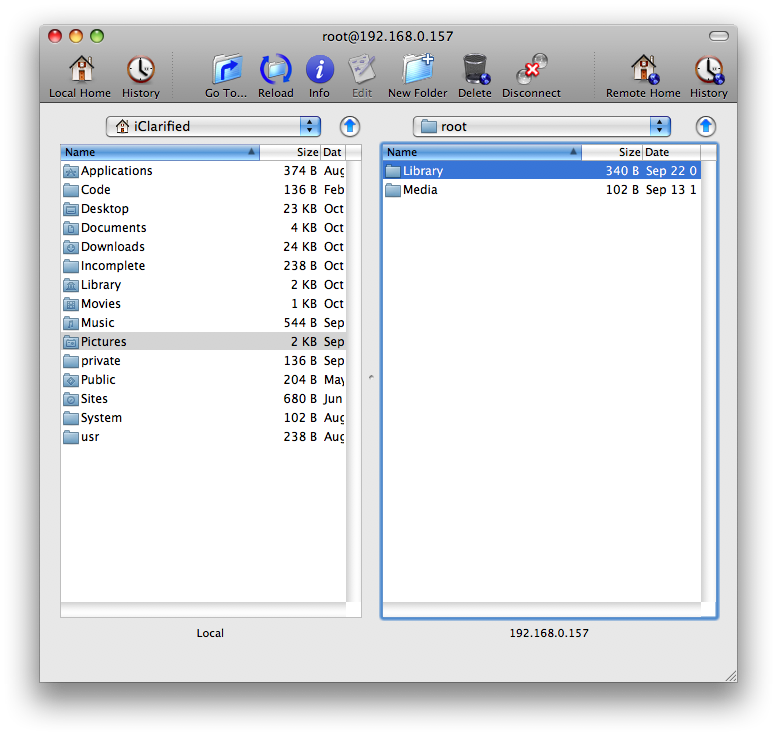
Fugu will then log you into your iPhone. You will be placed in the /private/var/root directory.

Step Nine
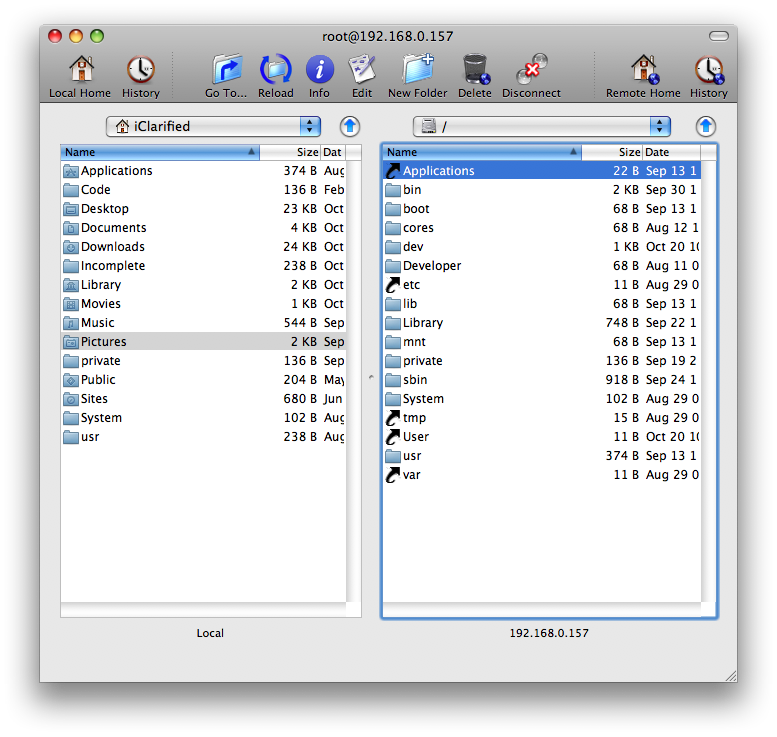
To get to the root folder of the iPhone you can select / from the dropdown on the right side of the window. From here you can access all the folders on your iPhone for example the Applications folder.



Step Ten
To transfer a file to the iPhone simply locate your local (on your computer) file using the left pane. Then navigate to the desired location in the right pane. Drag the file from the left pane to the right pane to copy the file to your iPhone.

Reference: iClarified.com

How to SSH Into Your iPhone Using WinSCP (Windows)

These are instructions on how to transfer files to your iPhone using WinSCP. To follow this tutorial you need to have a jailbroken iPhone with SSH installed. You can find instructions on how to jailbreak your iPhone here (3G) or here (2G)

Step One
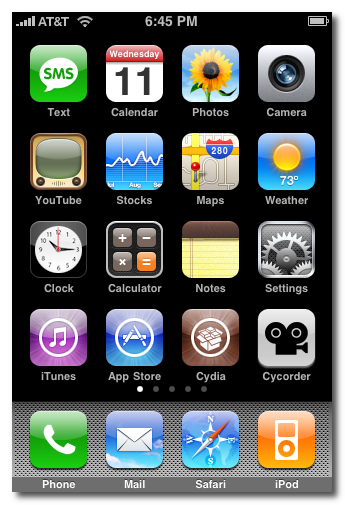
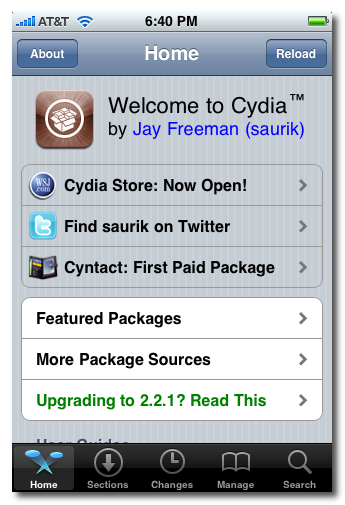
Press the Cydia icon on your Springboard


Step Two
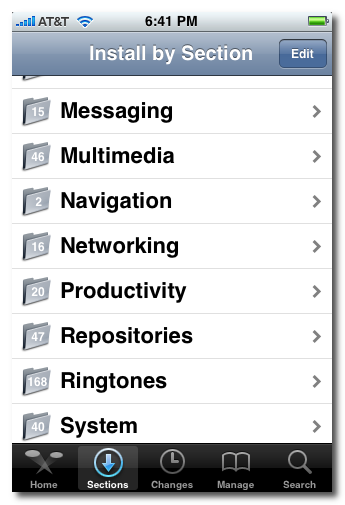
Press to select the Sections tab at the bottom of the screen.


Step Three
Press to select Networking from the list of Sections.


Step Four
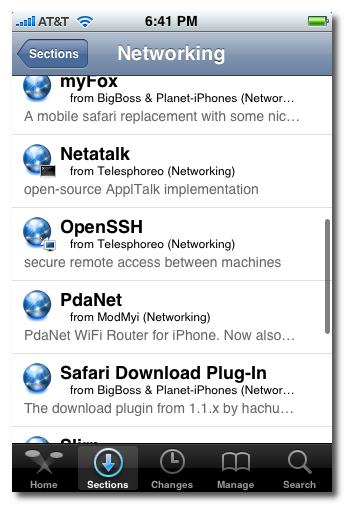
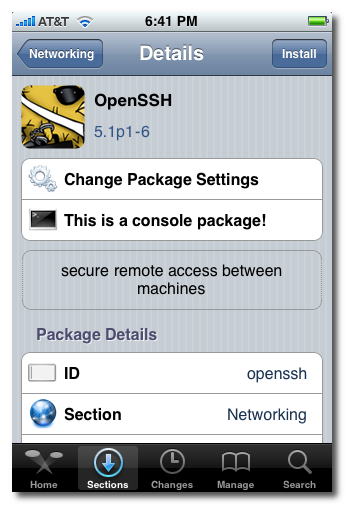
Press to select OpenSSH from the list of Packages.


Step Five
Press the Install button at the top right of the screen.


Step Six
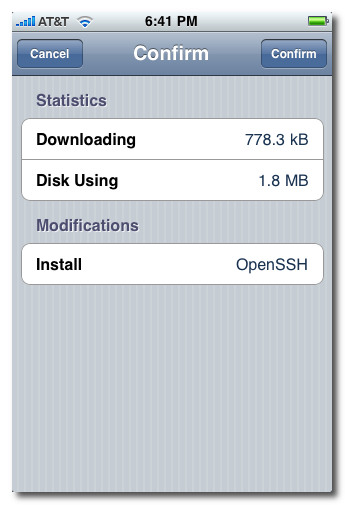
Press the Confirm button at the top right of the screen.


Step Seven
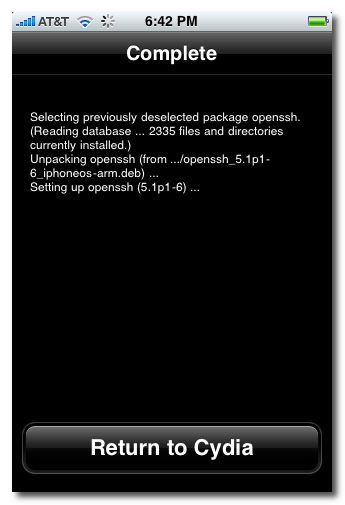
Once installation has completed successfully press the large Return to Cydia button.


Step Eight
Hit the home button on your iPhone to return to the Springboard.


Step Nine
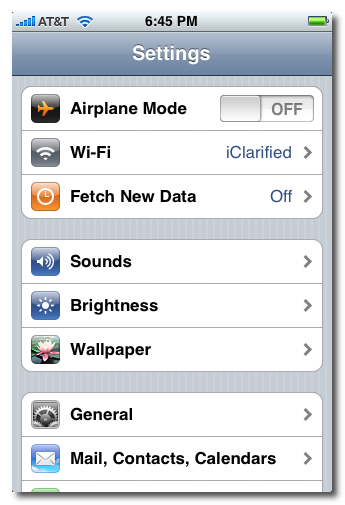
We must now obtain the IP Address of the iPhone. To do this press the Settings button on your Springboard.


Step Ten
Press to select Wi-Fi from the Settings Menu


Step Eleven
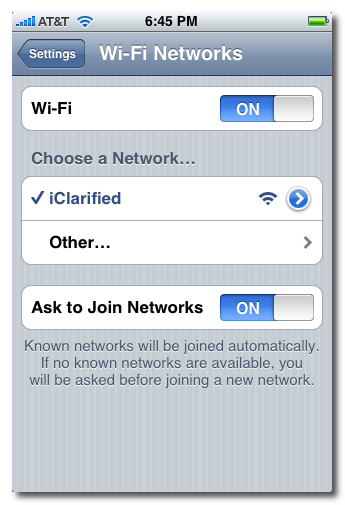
Make sure you are connected to a wireless network then press the circular blue arrow button.


Step Twelve
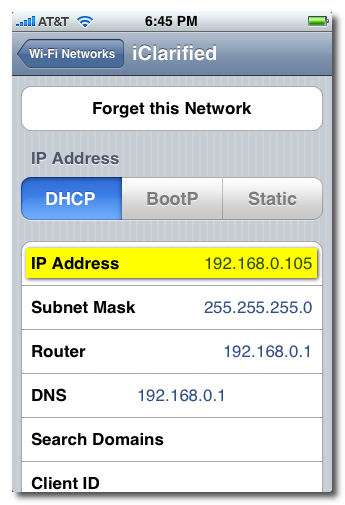
Take note of your IP address from the Wi-Fi details screen


Step Thirteen
Make sure you are on the same wireless network as your iPhone and launch WinSCP by clicking it on your desktop, or in the start menu. You can download WinSCP from here.


Step Fourteen
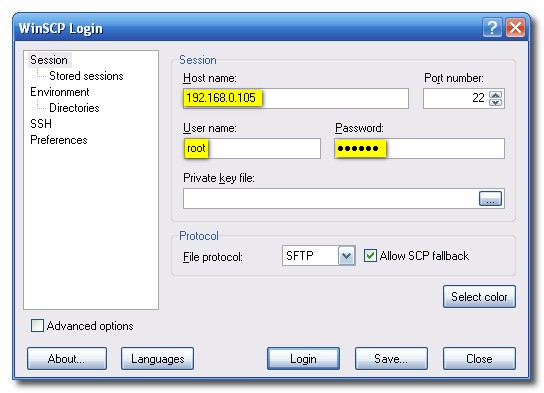
Once WinSCP opens, enter your iPhone's IP Address into the Host Name Field. Then enter root as your iPhone username and and alpine as the password. Then click Login.


Step Fifteen
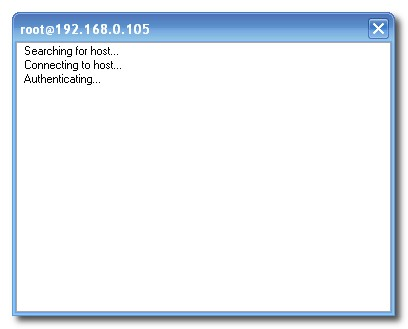
You will now see WinSCP connecting to your iPhone. The first time you login using SSH, it may take 30-45 seconds.


Step Sixteen
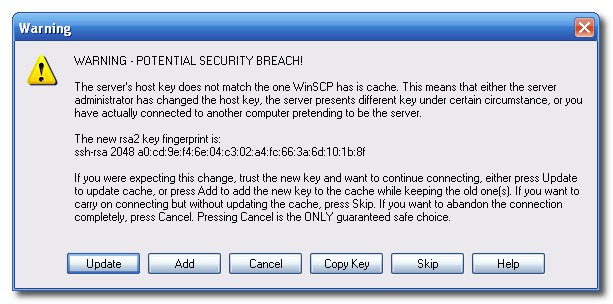
If a Warning dialogue pops up, click Update or Add


Step Seventeen
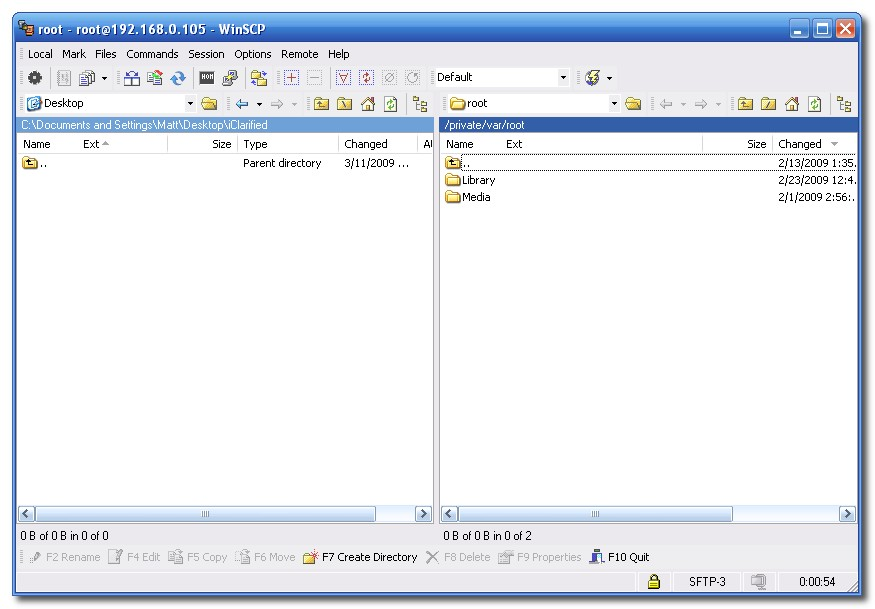
After about 30-45 seconds, WinSCP should successfully log you into your iPhone. You will be placed in the /private/var/root directory.


Step Eighteen
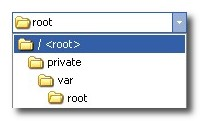
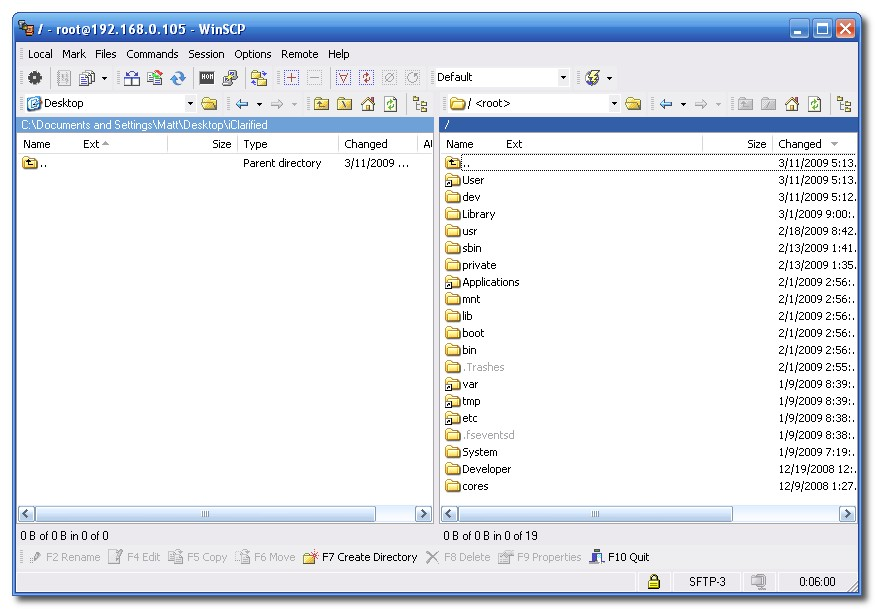
To get to the root folder of the iPhone you can select / from the dropdown on the right side of the window. From here you can access all the folders on your iPhone for example the Applications folder


Step Nineteen
To transfer a file to the iPhone simply locate your local (on your computer) file using the left pane. Then navigate to the desired location in the right pane. Drag the file from the left pane to the right pane to copy the file to your iPhone.


**Note**
As user dlr stated, it is a good idea to set auto-lock to never. You can do this by going to Settings>>>General>>>Auto-Lock and set to never.

Reference: iClarified.com

GPS Solution for iPhone 3G (Jailbroken): xGPS

Many of us do not have a data plan, which cost about $30/month. Map application on the iPhone will not let you download and store the maps from the Google Map. Since GPS uses Google Maps in iPhone 3G, this make imposable to use GPS feature of the iPhone 3G, without data plan, on the road. There is a easy way to get around this problem, if you have jailbroken your iPhone. xGPS is a free app one can download from the Cydia. xGPS lets you download the maps and lets you store it on the iPhone. Therefore, you can access the map from GPS without 3G/wifi connection. xGPS can search places, such as local Pizza Hut, and establishes driving directions. In order to search places and establish routes, you have to have Internet connection via wifi/3G. But once you have search the place or established the route, xGPS stored that into 'Routes Manager', and you can access that offline (on the road). Over all, xGPS manage and store your maps and routes, so you can access it even if you are not connected to Internet. From Cidya, one can download "xGPS" by following:

Go to Cydiya:


Tap on 'sections':


Select 'Navigation' in section :


Select 'xGPS':


Tap on Install:


After Install finished Press Home Button: